 Skip to main content

Teachers, coaches, and team leads all face the same weekly chore: recording who showed up and turning those checkmarks into useful numbers. Google Sheets is one of the simplest tools for the job — it is free, it runs in any browser, and it can do the math automatically. This guide explains how to make an attendance sheet in Google Sheets from scratch: setting up columns, marking attendance quickly, using formulas like COUNTIF to count present days, highlighting patterns with conditional formatting, and sharing the finished sheet with colleagues.
Why Google Sheets Works Well for Attendance
Google Sheets runs in any browser, saves every change automatically, and lets multiple people edit the same file at the same time. Unlike a paper register, it never gets lost in a drawer or ruined by a coffee spill. Unlike specialized attendance software, it costs nothing and needs almost no training. Formulas handle all the counting, so totals and percentages update themselves every time a mark is entered. For small schools, clubs, training groups, and shift teams, a well-built sheet does everything a paid attendance system does at the basic level — and it can be set up in under half an hour.
Setting Up the Basic Template
Columns to Include
Start with column A for student or employee names. Column B can hold an ID number if the group is large enough to need one. From column C onward, place one column per date — for example, Sep 1, Sep 2, Sep 3. Finally, add two columns at the far right: “Days Present” and “Attendance %”. This layout keeps every daily mark visible in the middle of the sheet and leaves the calculated columns at the right edge, where they are easy to find but out of the way during daily marking.
Freezing the Header Row
With dozens of date columns, names quickly scroll out of view. Select row 1, then choose View → Freeze → 1 row so the headers stay put. Also freeze column A with View → Freeze → 1 column so the names remain visible while scrolling right through the dates. These two clicks make a wide sheet dramatically easier to use, and they prevent the classic mistake of marking attendance in the wrong person’s row.
Adding Names and Dates
List every name in column A, one per row, in a stable order — alphabetical works best and makes people easy to find. For the dates, type the first date in column C, then drag the small fill handle across the row to generate the rest automatically. Sheets recognizes the pattern and continues the date sequence for you. Format the date cells consistently using Format → Number → Date so that sorting and formulas behave properly. When someone joins or leaves mid-term, add their row at the bottom or gray out their row rather than deleting it, so historical totals stay intact.
Recording Attendance with Data Validation
Typing “present” and “absent” by hand invites typos that break formulas later. Instead, use data validation to create a dropdown in every date cell. Select the date range, choose Data → Data validation, and allow only the values P, A, L, and E — standing for present, absent, late, and excused. Marking attendance then becomes one click per cell, fast enough to do during class or at the start of a shift. Consistent codes are essential because the COUNTIF formulas in the next section match exact text, and a dropdown guarantees that consistency across every person who touches the sheet.
Formulas That Do the Math for You
Counting Present Days with COUNTIF
In the “Days Present” column, use COUNTIF to count how many times P appears in a person’s row. For row 2 with dates in columns C through AG, the formula is =COUNTIF(C2:AG2,”P”). The total updates the instant any mark changes, with no manual recounting ever needed. Google’s official documentation for the COUNTIF function explains every option it supports, including counting cells that meet multiple criteria at once for more advanced setups.
Calculating the Percentage Automatically
In the “Attendance %” column, divide the present-day count by the number of tracked days and multiply by 100. If AH2 holds the COUNTIF result, the formula is =AH2/COUNTA(C2:AG2)*100. Format the cell as a percentage through Format → Number → Percent. As new date columns are added, extend the range — or reference whole rows so future columns are covered automatically. One formula per row is all it takes. The same math powers the free calculator on the homepage (attendance percentage calculator), which is handy for quick one-off checks without opening the sheet.
Highlighting Patterns with Conditional Formatting
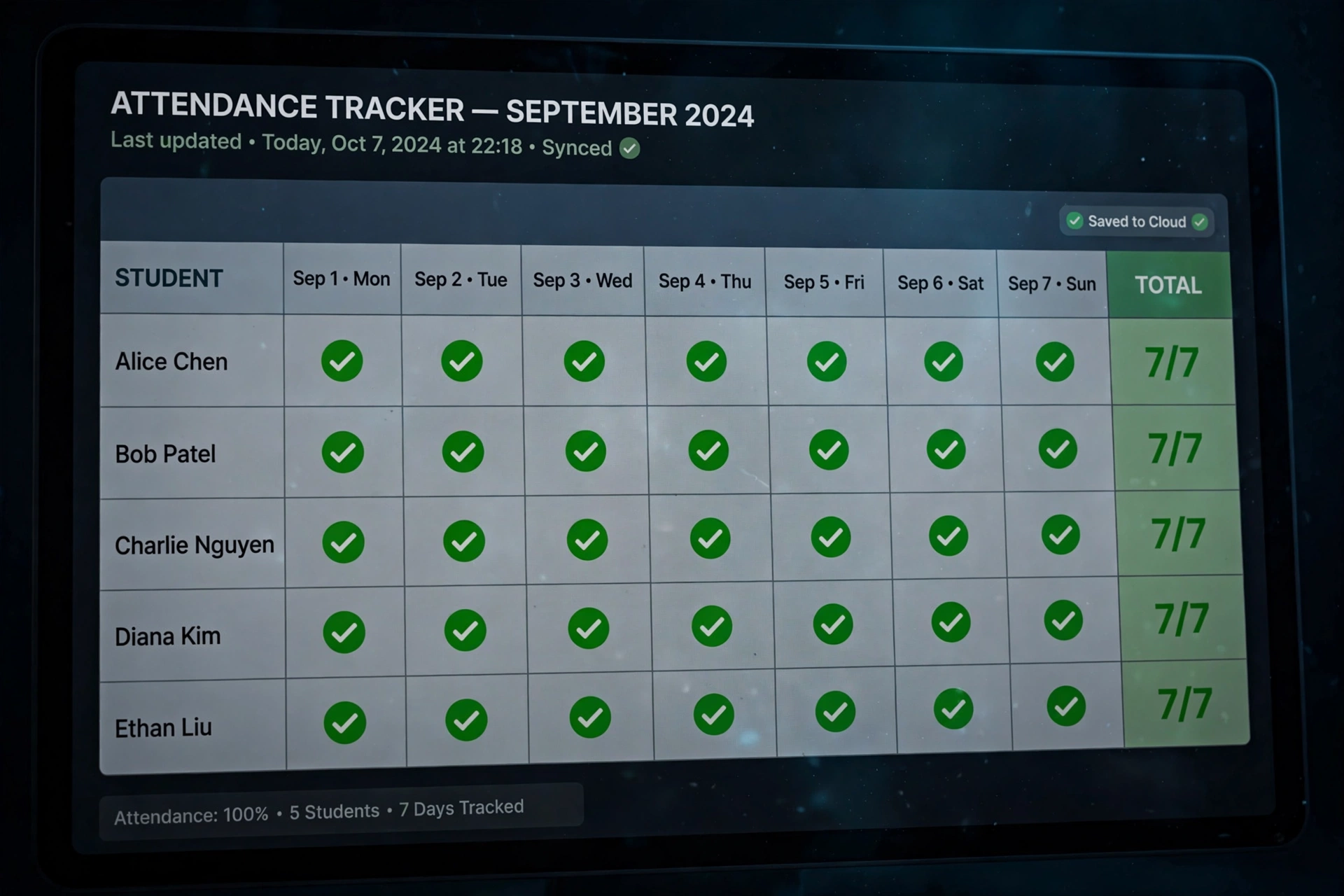
Numbers alone are easy to overlook, but color makes patterns jump out immediately. Select the attendance percentage column, choose Format → Conditional formatting, and set rules such as red for values below 90%, yellow for 90–95%, and green for above 95%. Apply a similar rule to the date cells themselves — for instance, highlighting every A in light red. At a glance, a teacher or manager can spot who needs attention without reading a single number. For teams reviewing broader school performance metrics, these visual cues turn a raw sheet into a genuine decision-making tool.
Creating a Summary Dashboard
A second tab in the same file can summarize everything. Use =AVERAGE() on the attendance percentage column for the overall group rate, =COUNTIF() to count how many people sit below 90%, and =MAX() and =MIN() to find the extremes. Add a simple chart with Insert → Chart to show the distribution of percentages across the group. This dashboard tab is the part worth sharing with administrators or parents, while the detailed daily marks stay on the first tab for staff. Refresh it once a month and it becomes a reliable, low-effort record of trends.
Sharing the Sheet with Staff
Click the Share button in the top-right corner and add colleagues by email address. Give teachers or shift leads Editor access so they can mark their own groups, and give administrators Viewer access so they can review the data without accidentally changing anything. Then use Data → “Protect sheets and ranges” to lock the formula columns, leaving only the daily mark cells editable. This setup prevents the most common spreadsheet disaster: someone overwriting a formula and silently breaking every percentage below it. Teams that want to go further can pair this system with guidance on how to improve school attendance.
Keeping the Sheet Accurate Over Time
A sheet is only as good as the data inside it. Mark attendance on the day it happens rather than reconstructing it from memory at the end of the week — same-day marking is dramatically more accurate. Once a month, confirm that everyone still uses the same dropdown codes and the same half-day rules. Resist the urge to delete rows for people who left; graying them out preserves history. And rely on File → Version history to recover from mistakes — Google keeps a full record of every change, so even a serious editing accident can be undone in a couple of clicks.
When to Outgrow the Spreadsheet
Sheets handle groups of up to a few hundred people comfortably. Beyond that — or when attendance must feed payroll, compliance reports, or automated parent notifications — dedicated software starts earning its keep. Warning signs include formulas breaking regularly, multiple conflicting copies of the file floating around, or staff spending hours each week on manual work the sheet was supposed to eliminate. Until that point arrives, though, a well-built Google Sheet remains one of the most practical attendance systems available, and building one teaches the team exactly what they will need if they ever decide to pay for software.
Building an attendance sheet in Google Sheets takes about twenty minutes the first time and saves hours every single month afterward. Set up the columns, lock in consistent codes with data validation, let COUNTIF and percentage formulas handle the math, add conditional formatting for instant insight, and share the file with sensible permissions. The result is a living record that updates itself — and a clear, honest picture of exactly who is showing up.
Frequently Asked Questions
How do I count present days automatically in Google Sheets? Use =COUNTIF(C2:AG2,”P”), adjusting the range to match your date columns and row number. It counts every cell containing P and updates instantly whenever a mark changes.
Can Google Sheets calculate attendance percentage? Yes. Divide the COUNTIF result by the number of tracked days and multiply by 100 — for example, =AH2/COUNTA(C2:AG2)*100 — then format the cell as a percentage through Format → Number → Percent.
What codes should I use for attendance marks? P (present), A (absent), L (late), and E (excused) are the most common set. Keep them short, use them consistently, and enforce them with data validation dropdowns so formulas never break on typos.
How do I share an attendance sheet without letting people break formulas? Share with Editor or Viewer access as appropriate, then use Data → “Protect sheets and ranges” to lock the formula columns so only the daily mark cells can be edited.
Is Google Sheets free for attendance tracking? Yes. A personal Google account includes Sheets at no cost, with automatic saving, full version history, and real-time collaboration all built in.


